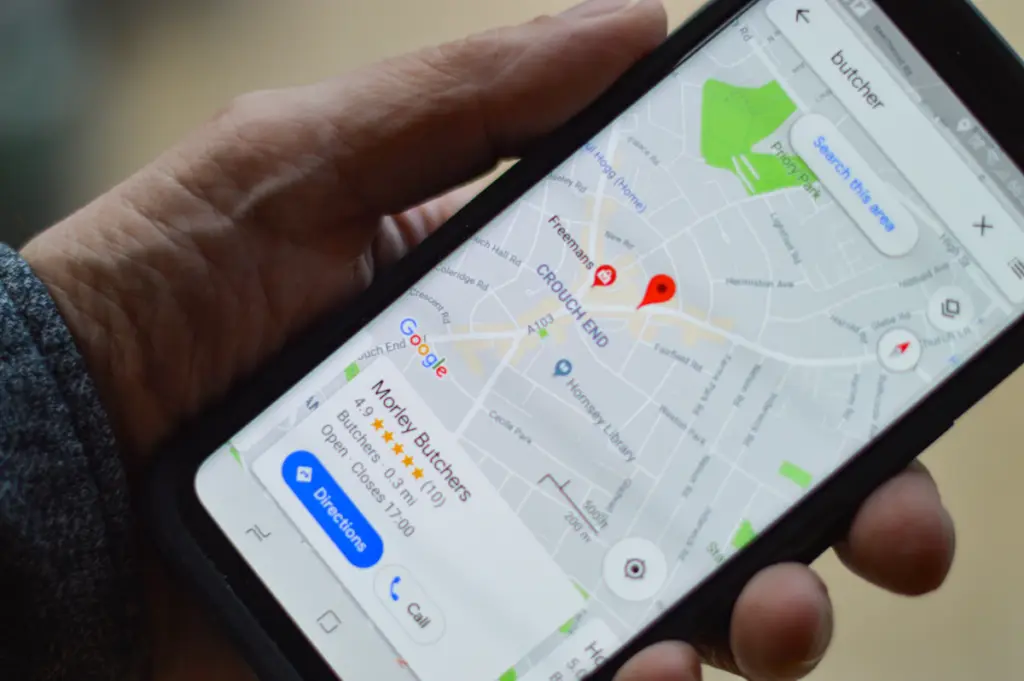
Dropping a pin in Google Maps lets you mark a specific point, even when it does not have a clear street address. You can use a pin to share a meeting place, identify a trailhead, save a location, or set a starting point or destination for directions.
Steps and button labels may vary slightly by app version and device. Start with the official Google Maps website or open the Google Maps app.
How to Drop a Pin on Android
- Open the Google Maps app.
- Search for the general area or move the map to the place you want to mark.
- Touch and hold the exact spot on the map until a pin appears.
- Tap the location card at the bottom of the screen to view available options.
- Choose an option such as Directions, Save, or Share if it is available for that location.
How to Drop a Pin on iPhone
- Open Google Maps on your iPhone.
- Search for the area or move the map to the desired spot.
- Touch and hold the location on the map to place a pin.
- Open the location card that appears to see details and available actions.
- Use Share to send the location link, Save to keep it in a list, or Directions to plan a route.
How to Drop a Pin on a Desktop Computer
- Visit Google Maps in your browser.
- Search for an address or zoom into the area you want.
- Click the exact spot on the map. Google Maps will show a location marker or information card.
- Select the coordinates or location card if you need more details.
- Use Share to copy a link or Directions to plan a route.
How to Share a Dropped Pin
After placing the pin, open its location card and choose the Share option if available. Select a messaging app or copy the link and send it to the person who needs the location. The recipient can open the link in Google Maps or a compatible browser.
Before sending, check that the pin is positioned accurately. A nearby road or building can be easy to select by mistake when zoomed out.
How to Save a Location for Later
Open the pin’s details and choose Save if the option is available. Select a list such as Favorites or another suitable list. Saved locations are associated with your Google account when you are signed in, so use the correct account if you want to find them later.
How to Use a Pin for Directions
Open the pin’s information card and choose Directions. Enter your starting point or destination as needed, then review the suggested route. If the pin marks an off-road location, verify the final approach yourself; map directions may not account for private access, gates, or trail conditions.
How to Remove or Replace a Pin
For a temporary dropped pin, tap or click another spot or close the location card and select a new point. The exact behaviour depends on the device and current Maps interface. A saved place is different from a temporary pin; remove it from the relevant saved list if you no longer want it there.
Troubleshooting Tips
- Pin appears in the wrong place: Zoom in further before touching or clicking the map.
- Share option is missing: Open the full location card and look for additional actions.
- Link opens the wrong app: Try opening it in a browser or the Google Maps app.
- Saved location is missing: Check that you are signed in to the Google account used to save it.
Frequently Asked Questions
Can I drop a pin without a street address?
Yes. You can mark a point directly on the map even when no street address is shown.
Can I share a pin with someone?
Yes. Open the pin’s details and use the Share option to send a link, where available.
Is a dropped pin automatically saved?
No. A temporary pin is not the same as saving a place to a list. Use Save if you want to keep the location for later.
Final Thoughts
Dropping a pin is a simple way to mark and share a precise location. Zoom in before selecting the spot, verify the location card, and use the available options to save it, share it, or get directions. For more practical guides, explore the QHR Solutions website.